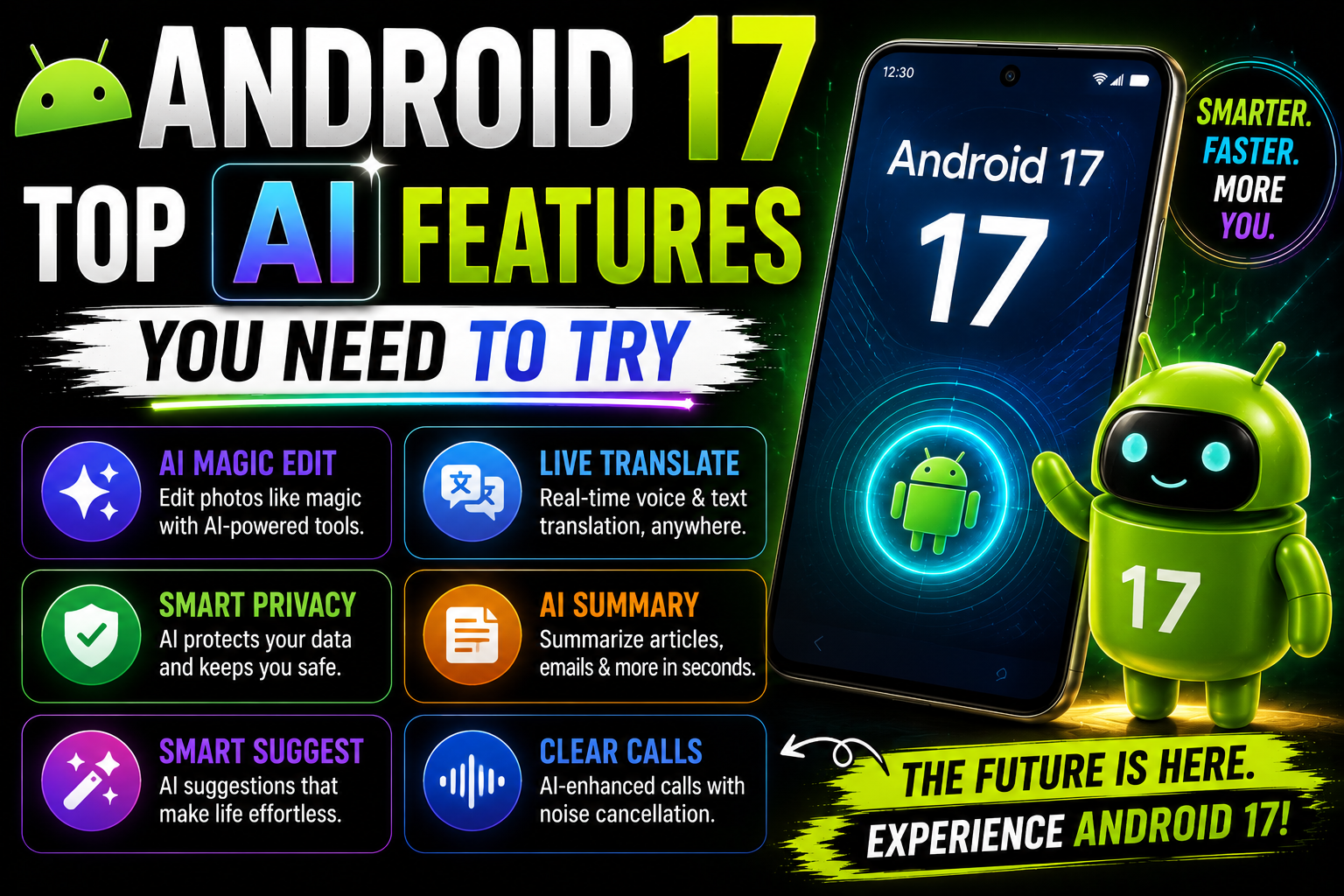
Google didn’t just update Android this year. It rebuilt the operating system’s brain.
Android 17 landed on Pixel phones on June 16, 2026, and it’s the clearest sign yet that Google wants your phone to think, not just react. The headline act is Gemini Intelligence, a system-level AI layer that can string together multiple steps across different apps on your behalf, instead of waiting for you to tap through each one yourself.
That’s a real shift. Past Android releases tweaked the interface or squeezed out more battery life. Android 17 hands a chunk of your daily busywork to an assistant that lives inside the OS itself. If you’ve ever wished your phone could just book the thing, summarize the call, or catch the scam text before you do, this update was built with you in mind.
Below, we break down the 12 AI features worth trying first, the hidden extras most sites won’t mention, how Android 17 stacks up against Android 16, which phones qualify, and the settings you should flip the moment your update finishes installing.
Table of Contents
- What Is Android 17?
- What’s New in Android 17?
- Top 12 Android 17 AI Features You Need to Try
- Hidden Android 17 AI Features
- Android 17 vs Android 16
- Android 17 Supported Phones
- Hidden Settings You Should Enable After Updating
- Android 17 Tips and Tricks
- Pros and Cons
- Is Android 17 Worth Installing?
- Frequently Asked Questions
- Final Verdict
What Is Android 17?
Android 17, internally code-named “Cinnamon Bun,” is Google’s latest major version of the Android operating system. It rolled out first to Google Pixel devices, alongside a companion Pixel Drop and a new build of Wear OS for smartwatches, before beginning its slower march to Samsung, OnePlus, Xiaomi, and other manufacturers later in the year.
What makes Android 17 different isn’t a redesigned icon set or a new color palette. It’s Google’s AI-first vision finally showing up at the operating system level instead of staying locked inside individual apps. Gemini used to be something you opened. In Android 17, Gemini is something the phone runs in the background while you do something else entirely.
That matters because of how much of your day gets swallowed by small, repetitive phone tasks: writing the same kind of reply, screening spam calls, hunting through your camera roll for one photo. Android 17 aims to take a bite out of that busywork automatically, and it does so through a new framework called AppFunctions, which lets apps expose their own capabilities as tools that Gemini can call directly. For readers who want the full technical rundown, Android’s official developer documentation covers this in detail.
What’s New in Android 17?
The biggest improvements in Android 17 fall into four buckets:
- Agentic AI. Gemini Intelligence can now complete multi-step tasks across apps, not just answer a single question.
- Proactive security. New scam-call verification, theft protection, and malware detection run quietly in the background instead of waiting for you to notice something wrong.
- Smarter multitasking. Floating Bubbles, refreshed desktop windowing, and picture-in-picture upgrades make juggling apps feel less cramped, especially on tablets and foldables.
- Digital wellbeing nudges. A new feature called Pause Point adds a brief delay before opening apps you’ve flagged as distracting, aimed at cutting down mindless scrolling.
You can read Google’s own feature rundown at blog.google or browse the general Android ecosystem at android.com.
Top 12 Android 17 AI Features You Need to Try
1. Gemini AI Assistant
What it does: Acts as the system-wide AI layer, replacing the old Assistant with something that understands context across your apps. How it works: Gemini Intelligence sits on top of AppFunctions, so any app that exposes its features as “tools” can be called on directly by the assistant. Why try it: It saves the back-and-forth of switching apps manually for routine requests. Real-life example: Show Gemini a flyer for a group trip and ask it to find something similar. It can search travel sites in the background and surface a matching booking for you to confirm.
2. Gemini Live
What it does: Gives you a real-time, conversational voice mode for brainstorming, practicing, or working through a problem out loud. How it works: It streams your voice and, on supported devices, your camera feed to Gemini for live back-and-forth responses. Why try it: It’s faster than typing when you’re cooking, driving, or just thinking out loud. Real-life example: Point your camera at a broken appliance part and ask Gemini Live to help identify what you need to buy.
3. Smart Writing Assistant
What it does: Rewrites, shortens, or adjusts the tone of text you’re drafting in messages, email, or notes. How it works: It runs inline inside the keyboard and text fields, suggesting edits without you leaving the app. Why try it: It’s a fast way to soften a blunt message or tighten up a long one before hitting send. Real-life example: Draft a quick, casual text to a friend, then tap to make it sound more professional before forwarding it to a coworker instead.
4. AI Call Summary
What it does: Produces a short written recap of a phone call after it ends. How it works: On-device processing transcribes and condenses the call, so you get the key points without replaying the whole thing. Why try it: It’s handy for calls with doctors, landlords, or customer service reps where details matter. Real-life example: After a 20-minute insurance call, glance at a three-line summary instead of trying to remember the claim number.
5. AI Voice Translation
What it does: Translates spoken conversations in near real time. How it works: It builds on Google’s AudioLM-based speech tools, first introduced with newer Pixel hardware, to translate speech directly rather than translating text after the fact. Why try it: It removes the awkward pause of typing translations back and forth while traveling. Real-life example: Order food at a restaurant abroad by speaking normally while your phone quietly translates for the server.
6. AI Notification Intelligence
What it does: Groups, summarizes, and prioritizes your notification shade so urgent alerts don’t get buried. How it works: It uses new “Metric Style” Live Update templates that show multiple data points at once on your lock screen and status bar. Why try it: It cuts down the daily scroll-and-swipe ritual of clearing dozens of low-priority alerts. Real-life example: A delivery tracker, a workout timer, and a flight countdown can all show live progress on your lock screen at once, instead of three separate buried notifications.
7. AI Battery Optimization
What it does: Learns your usage patterns and adjusts background app activity to stretch battery life. How it works: On-device models predict which apps you’re about to use and which ones are safe to throttle. Why try it: It’s a passive win. You don’t have to do anything except let it learn your habits. Real-life example: Apps you rarely open stop draining battery in the background, while apps you check every hour stay fast and ready.
8. AI Camera Enhancements
What it does: Improves photo and video quality using on-device AI models, including sharper upscaling and cleaner audio. How it works: New vendor camera extensions let hardware partners plug AI-driven “Super Resolution” and similar tools directly into the camera pipeline. Why try it: You get noticeably better low-light shots and steadier video without extra editing. Real-life example: A shaky concert video shot in low light comes out sharper and less noisy thanks to on-device processing.
9. AI Photo Search
What it does: Lets you search your gallery using natural language instead of dates or folders. How it works: On-device image understanding indexes your photos by content, so a plain-language query can find the right one. Why try it: It saves the endless scroll through thousands of photos. Real-life example: Type “the receipt I photographed last month” and find it instantly, without remembering the exact date.
10. AI Video Editing Tools
What it does: Adds AI-assisted editing features like smart enhance, upscaling, and audio cleanup for creators. How it works: These arrive partly through Instagram’s Edits app, which gets Android 17-exclusive tools including a sound separation feature that strips out wind and background noise. Why try it: It’s an easy way to make casual clips look and sound more polished before posting. Real-life example: Clean up windy outdoor audio from a video before sharing it, without needing a separate editing app.
11. AI Spam and Scam Protection
What it does: Flags and can automatically end calls that impersonate your bank or other trusted institutions. How it works: The system verifies suspicious calls in the background through your official banking app, and can cut the call off if it detects impersonation. Why try it: It’s one of the few AI features that directly protects your money, not just your convenience. Real-life example: A scammer spoofing your bank’s number gets flagged and disconnected before you’re pressured into sharing account details.
12. AI App Suggestions
What it does: Predicts and surfaces the apps you’re likely to want next, based on time, location, and habits. How it works: On-device pattern recognition adjusts your app drawer and dock suggestions throughout the day. Why try it: It shaves seconds off finding the right app at the right moment. Real-life example: Your commute app quietly moves to the front of your dock right around the time you usually leave for work.
Expert tip: Mobile analysts covering the Android 17 launch have consistently pointed to AppFunctions, the framework letting apps expose their features to Gemini, as the feature with the most long-term impact. It’s less flashy than a chatbot, but it’s what makes every other AI feature on this list possible.
Hidden Android 17 AI Features
Most coverage stops at the headline features. These are worth digging into as well:
- App Functions AI: The underlying API that lets developers register app actions Gemini can call directly, similar in spirit to the Model Context Protocol used by AI agents elsewhere.
- AI-Powered Bubble Bar: Floating Bubbles now use lightweight AI sorting to keep your most relevant conversations easiest to reach.
- Desktop Mode Improvements: Connecting a supported phone to an external display gives you a more capable, resizable windowed experience for multitasking.
- Interactive Picture-in-Picture: PiP windows now support more direct interaction, so you can act on a video or app without expanding it back to full screen.
- AI Clipboard: Smarter clipboard handling recognizes what you’ve copied, whether it’s an address, a phone number, or a block of text, and offers relevant next actions.
- Smart Multitasking: The system predicts which two or three apps you’re likely to use together and preps split-screen shortcuts accordingly.
- Context-Aware AI: Gemini increasingly factors in what’s on your screen right now, not just what you type into a prompt box.
- Offline On-Device AI: Several Gemini Nano-based features, including parts of scam and malware detection, run entirely offline for privacy and speed.
- AI Security Engine: “Dynamic signal monitoring” watches for suspicious app behavior in real time, like apps that quietly change their icon or launch themselves in the background.
- Predictive App Launch: Frequently used apps preload in the background just before you’re likely to open them, cutting down on load times.
- Pause Point: A quieter digital wellbeing feature that adds a short pause before opening apps you’ve flagged as distracting, giving you a moment to reconsider.
- Continue On: Lets you pick up a task, like a half-written email or an open webpage, on a different Android device without starting over.
Android 17 vs Android 16
| Category | Android 16 | Android 17 |
|---|---|---|
| AI | App-level Gemini features | System-wide Gemini Intelligence with cross-app automation |
| Battery | Standard adaptive management | AI-predicted background throttling |
| Performance | Solid, incremental gains | Faster app preloading via predictive launch |
| Security | Basic theft protection | Scam call verification, biometric lost-device lock, dynamic signal monitoring |
| Privacy | Manual permission controls | Temporary OTP hiding, tighter accessibility permission limits |
| Customization | Standard widgets and themes | Expanded Live Update templates, smarter Bubbles |
| Productivity | Basic split-screen | Desktop windowing, Continue On, interactive PiP |
| Gaming | Standard performance modes | Improved modes tuned for foldables |
| Camera | Software-based enhancements | Vendor AI camera extensions, on-device upscaling |
| Multitasking | Split-screen only | Bubbles, resizable desktop windows, predictive app pairing |
Android 17 Supported Phones
Google Pixel leads the rollout, as always. Pixel 6 through the newest Pixel models are eligible, though Pixel 6, 6 Pro, and 6a owners should note that Android 17 is their final major OS update, with security patches continuing only through October 2026.
Beyond Pixel, expect Android 17 to reach these brands over the following months, based on each manufacturer’s update history:
- Samsung: Galaxy S23 and newer, plus recent Z Fold and Z Flip models, via One UI 9.
- OnePlus: OnePlus 11 and newer, plus recent Nord and Open foldable models.
- Xiaomi: Xiaomi 13 and newer, along with select Redmi and POCO devices under HyperOS.
- Motorola: Recent Edge and Razr foldable lines.
- Nothing: Nothing Phone 2 and newer.
- Vivo and iQOO: Recent X-series and numbered flagship models.
- Oppo: Find X7 series and newer, moving toward ColorOS 17.
- Honor: Recent Magic series flagships, via MagicOS 11.
Rollout timing varies significantly by brand and region, so check your device’s software update settings rather than assuming a fixed date.
Hidden Settings You Should Enable After Updating
- Turn on biometric-only lock under Find Hub so a stolen device can’t be unlocked even if someone captures your PIN.
- Enable scam call verification if your bank participates, so spoofed calls get flagged automatically.
- Turn on temporary OTP hiding to keep one-time passcodes out of reach of third-party apps for a few hours after they arrive.
- Review accessibility permissions for any apps you don’t recognize, since Android 17 tightens monitoring here.
- Enable Pause Point on your most distracting apps if you want a built-in nudge against mindless scrolling.
- Turn on Continue On if you regularly switch between multiple Android devices during the day.
Android 17 Tips and Tricks
- Ask Gemini to summarize a long group chat instead of scrolling through it manually.
- Use Gemini Live hands-free while cooking or driving instead of typing.
- Group your Bubbles by project or contact for faster access.
- Let AI battery optimization run for a full week before judging its impact.
- Use AI photo search with plain-language queries like “beach sunset last summer.”
- Try Desktop Mode on a larger external screen for real multitasking.
- Set Pause Point on your two most-used social apps first, then expand later.
- Use AI call summaries for anything involving numbers, like insurance or medical calls.
- Check your notification shade’s grouped summaries before diving into individual alerts.
- Turn on scam call verification even if you think you’d never fall for a spoofed call.
- Use Continue On to move a half-finished draft from your phone to a tablet seamlessly.
- Explore AppFunctions-compatible apps as they roll out for deeper Gemini automation.
Pros and Cons
| Pros | Cons |
|---|---|
| Genuinely useful cross-app AI automation | Full Gemini Intelligence limited to select devices at launch |
| Strong new anti-scam and anti-theft tools | Rollout to non-Pixel brands is slow and staggered |
| Better multitasking with Bubbles and desktop windowing | Some features rely on partner banks or apps that aren’t universal yet |
| More on-device, privacy-friendly AI processing | Older or budget devices may not get every feature |
| Useful digital wellbeing additions like Pause Point | Learning curve for users unfamiliar with agentic AI |
Is Android 17 Worth Installing?
Yes, and for most users it’s an easy call. The security additions alone, particularly scam call verification and biometric lost-device locking, are worth the update on their own. Layer in genuinely time-saving AI tools like call summaries, smarter notifications, and cross-app automation, and Android 17 earns its reputation as Google’s most AI-focused release yet.
The one caveat: the most advanced Gemini Intelligence features are rolling out gradually and favor newer, higher-end hardware first. If you’re on an older or budget device, expect a lighter version of the experience at launch, with more capability arriving over time.
Frequently Asked Questions
1. What is Android 17? Android 17 is Google’s latest major Android operating system release, focused heavily on system-wide AI features powered by Gemini.
2. When did Android 17 release? It launched on Pixel devices on June 16, 2026, with other brands following throughout the rest of the year.
3. What is Gemini Intelligence? It’s a system-level AI layer in Android 17 that can complete multi-step tasks across different apps automatically, rather than requiring manual app switching.
4. Which phones support Android 17? Google Pixel 6 and newer are supported first, followed by recent Samsung, OnePlus, Xiaomi, Motorola, Nothing, Vivo, Oppo, and Honor devices over the following months.
5. Is Android 17 available for Samsung phones? Samsung is bringing Android 17 through One UI 9, expected to reach Galaxy S23 and newer devices after the initial Pixel rollout.
6. What are the best AI features in Android 17? Gemini Intelligence, AI call summaries, AI scam call protection, and AI notification intelligence stand out as the most practical daily-use features.
7. Does Android 17 improve battery life? Yes. AI-driven background app management is designed to reduce unnecessary battery drain based on your actual usage patterns.
8. Is Android 17 safe from scams and malware? Android 17 adds proactive scam call verification with partner banks and dynamic signal monitoring to catch suspicious app behavior before it causes harm.
9. How is Android 17 different from Android 16? The biggest shift is moving from app-level AI features to a system-wide, agentic AI layer, alongside stronger security and multitasking tools.
10. Can I install the Android 17 beta early? Yes, eligible Pixel and select partner devices can join Google’s Android beta program to try builds ahead of the general rollout.
Final Verdict
Android 17 isn’t a cosmetic refresh. It’s Google betting that AI belongs at the operating system level, not tucked inside individual apps. Between Gemini Intelligence, sharper security, and genuinely useful daily tools like call summaries and notification grouping, this update earns its place as one of Android’s most significant AI releases to date.
If your device is eligible, it’s worth updating as soon as it’s available. And if you’re shopping for a new phone, prioritizing Android 17-ready hardware from launch means you won’t be waiting months to catch up to features other users already have.
Internal linking suggestions for TechyReel: Best Android Apps in 2026 · Google Gemini AI Guide · Android Security Tips · Best AI Apps for Android · Android 17 Supported Phones · Android vs iPhone Comparison